
CAD & BIM Viewer

Understand the building before you build.

Explore IFC building models in 3D and DXF CAD drawings in 2D, in a dedicated viewer connected to your BuildFlow-CM project drawings and documents.

Browser-based viewing. No Autodesk account required.

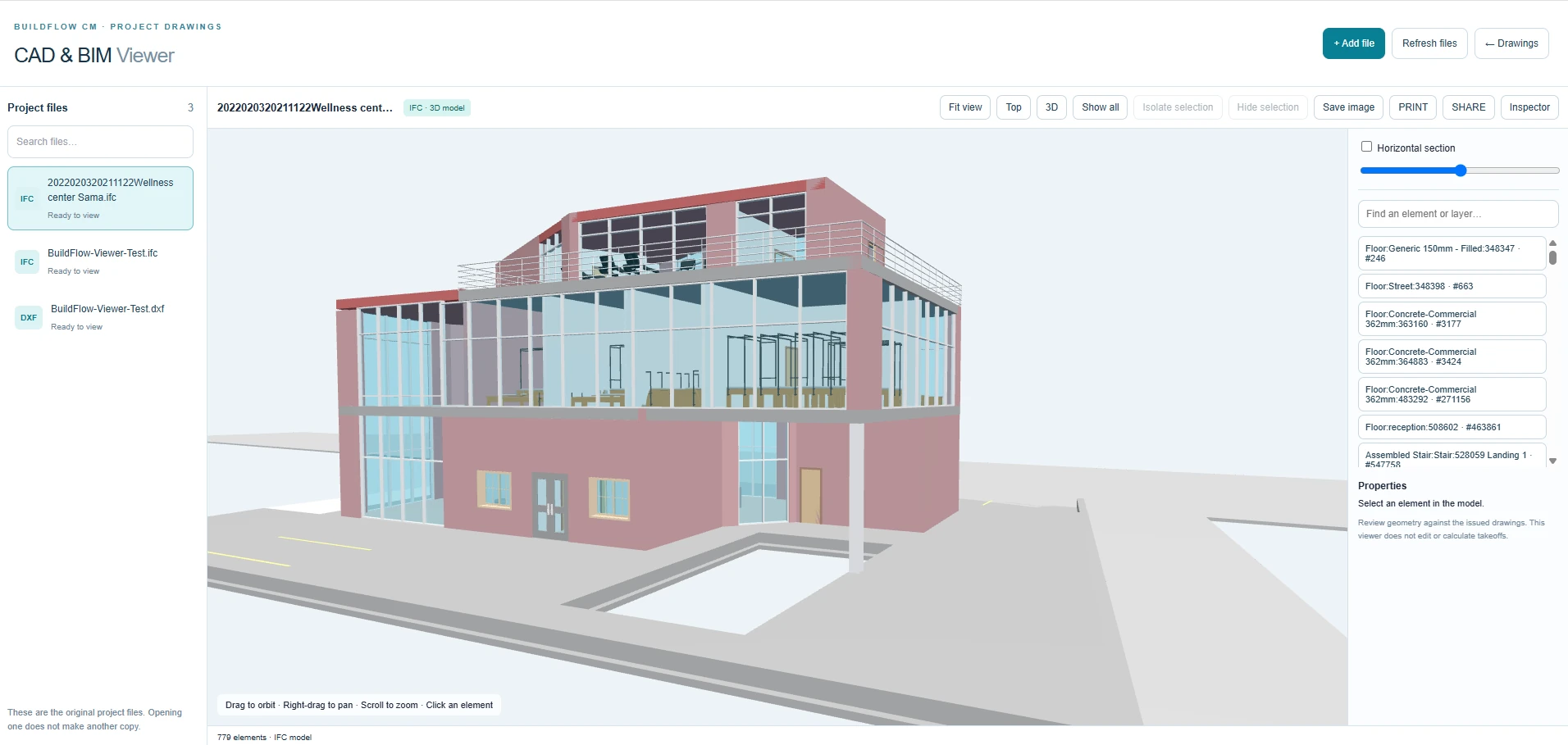
Actual BuildFlow-CM CAD and BIM viewer with IFC model, layer browser and 3D element controls
Real BuildFlow-CM IFC viewer: orbit, isolate and inspect the building model without an Autodesk account.
IFC · 3D model viewing

See what is inside the model.

Orbit around the building, pan, zoom and fit the model to your screen. Select elements to inspect the properties included in the IFC file, then focus on the parts you need to review.

  • ●Hide selected elements, isolate a selection or show everything again.
  • ●Use a horizontal section cut to look inside the building.
  • ●Switch between top and 3D views, and export an image of the view.
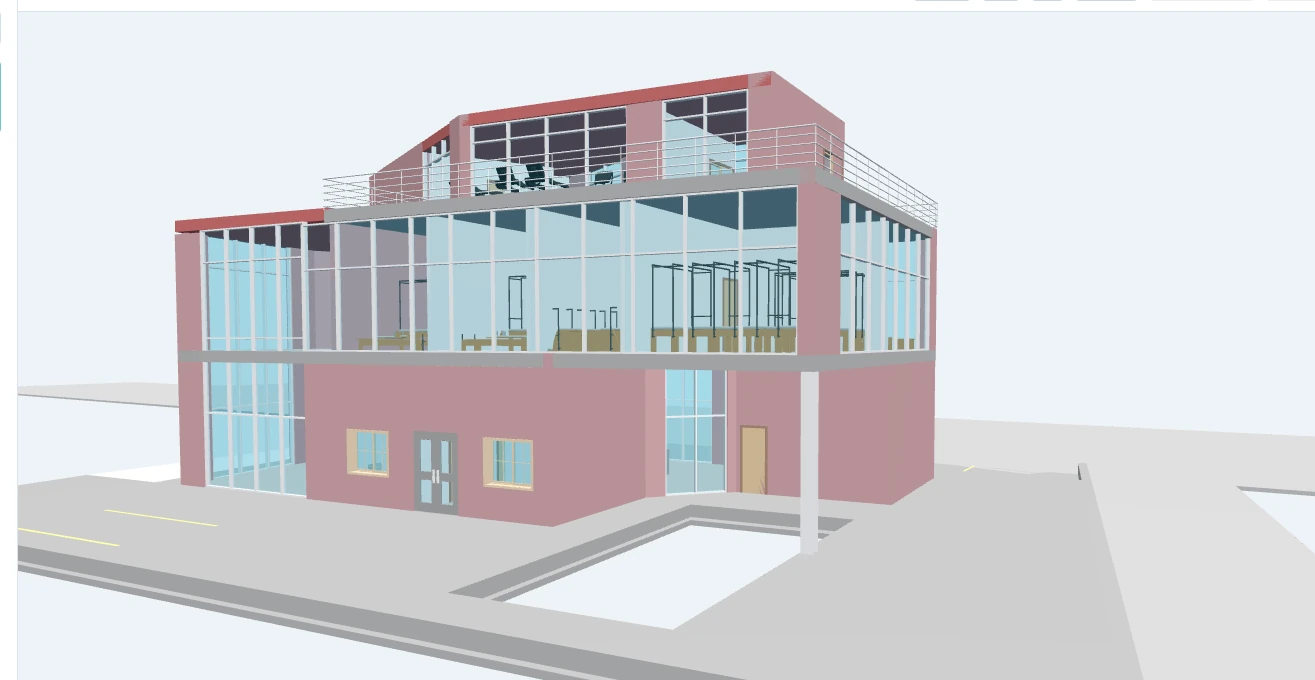
Actual IFC 3D model inspected in BuildFlow-CM CAD and BIM Viewer

Structural model: Patmacgin · CC BY-SA 4.0 · Web-optimized; no content edits. Source and license
DXF · 2D CAD viewing

A clearer view of the drawing.

Open DXF drawings in the browser to review model-space geometry. Pan across the plan, zoom into details and fit the drawing to the screen.

  • ●Turn DXF layers on or off to reduce visual clutter.
  • ●Review CAD drawings alongside the project’s other documents.
  • ●For AutoCAD DWG files, export a DXF copy before viewing.
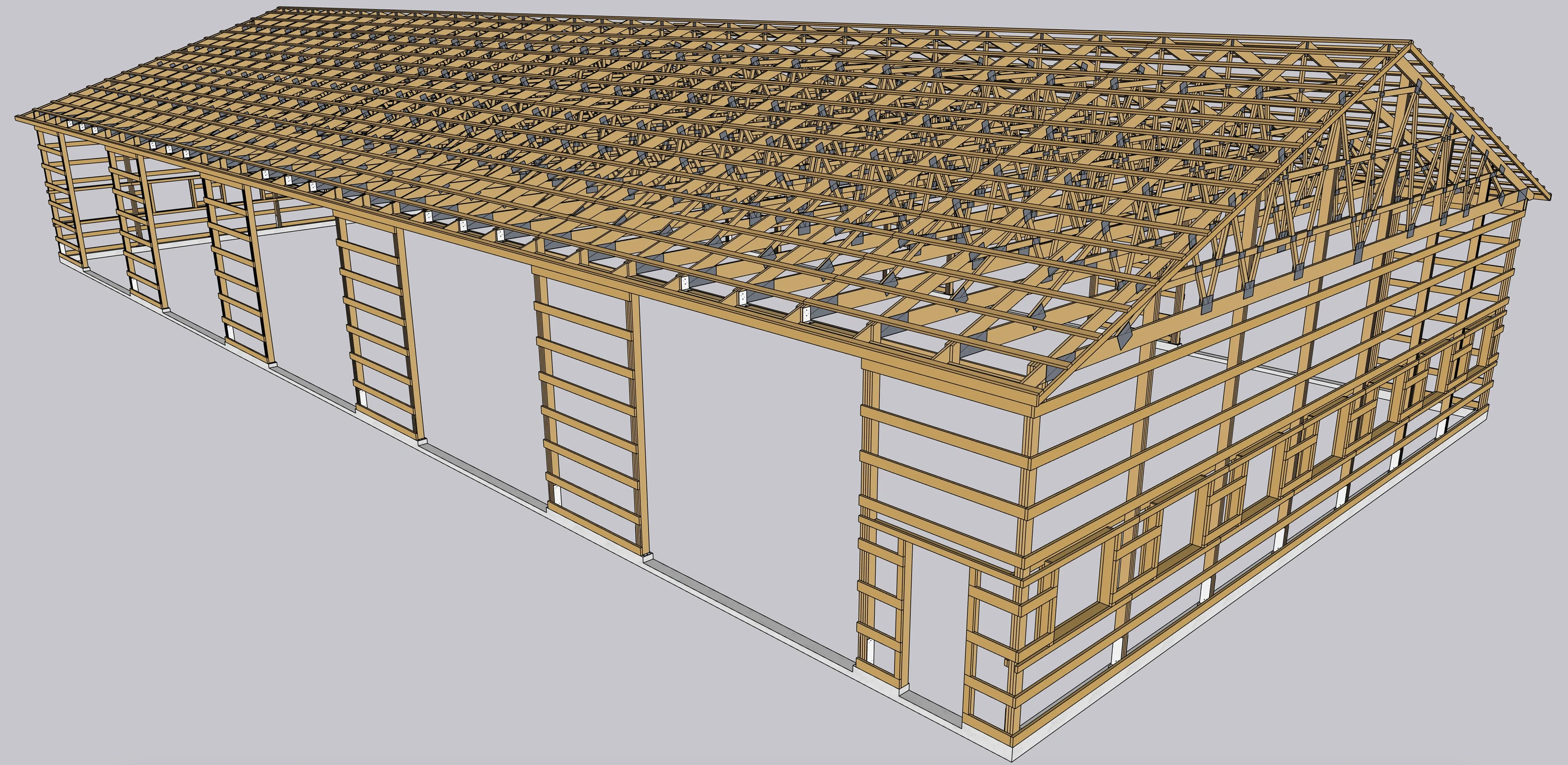
Three-dimensional timber framing reference model

3D framing reference (not a DXF screenshot): Wikideas1 · CC0 · Web-optimized; no content edits. Source and license
Connected project files

Upload once. Open from the project.

The CAD & BIM workspace lists supported files already stored in Project Documents. Open an existing file without creating another upload, or add a new file when your team receives a model or drawing.

  • ●A dedicated viewing module connected to the project drawings workspace.
  • ●Keep original DWG and RVT files in Project Documents.
  • ●View IFC and DXF exports without an Autodesk account or Autodesk viewer.
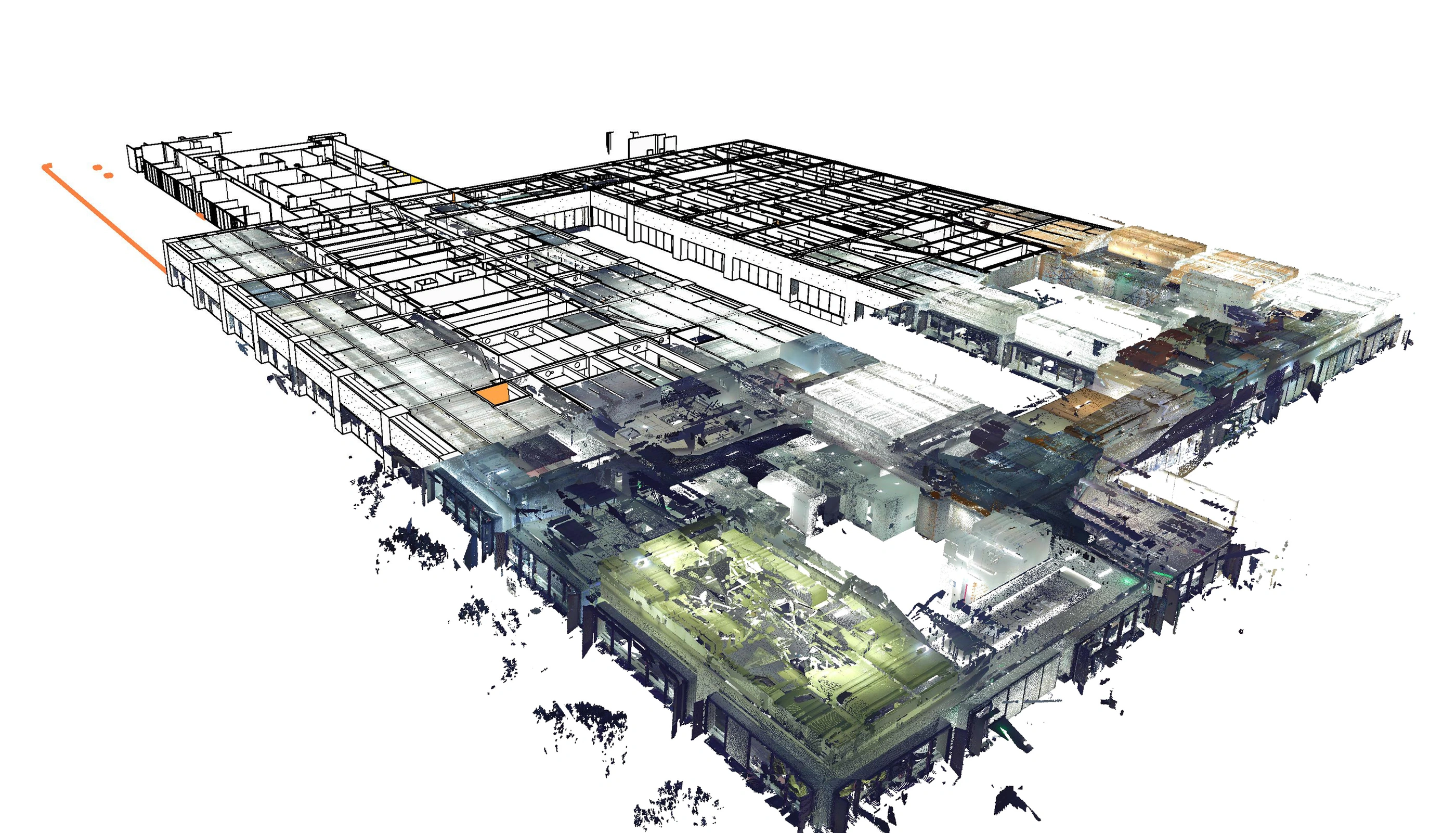
Building model combined with laser scan data

Scan-to-BIM project example: Quynhphamnhat · CC BY-SA 4.0 · Web-optimized; no content edits. Shown as an external example; point-cloud viewing is not a BuildFlow feature. Source and license

Start with viewing

Practical review tools for your team.

This release is focused on viewing and understanding drawings and models. It does not automatically transfer BIM quantities into takeoff, pricing or estimates. Your existing drawing and estimating workflows remain available separately.

  • ●IFC: 3D model navigation, element visibility, sectioning and properties.
  • ●DXF: 2D navigation and layer visibility.
  • ●DWG and RVT: original-file storage; DXF or IFC export required for viewing.
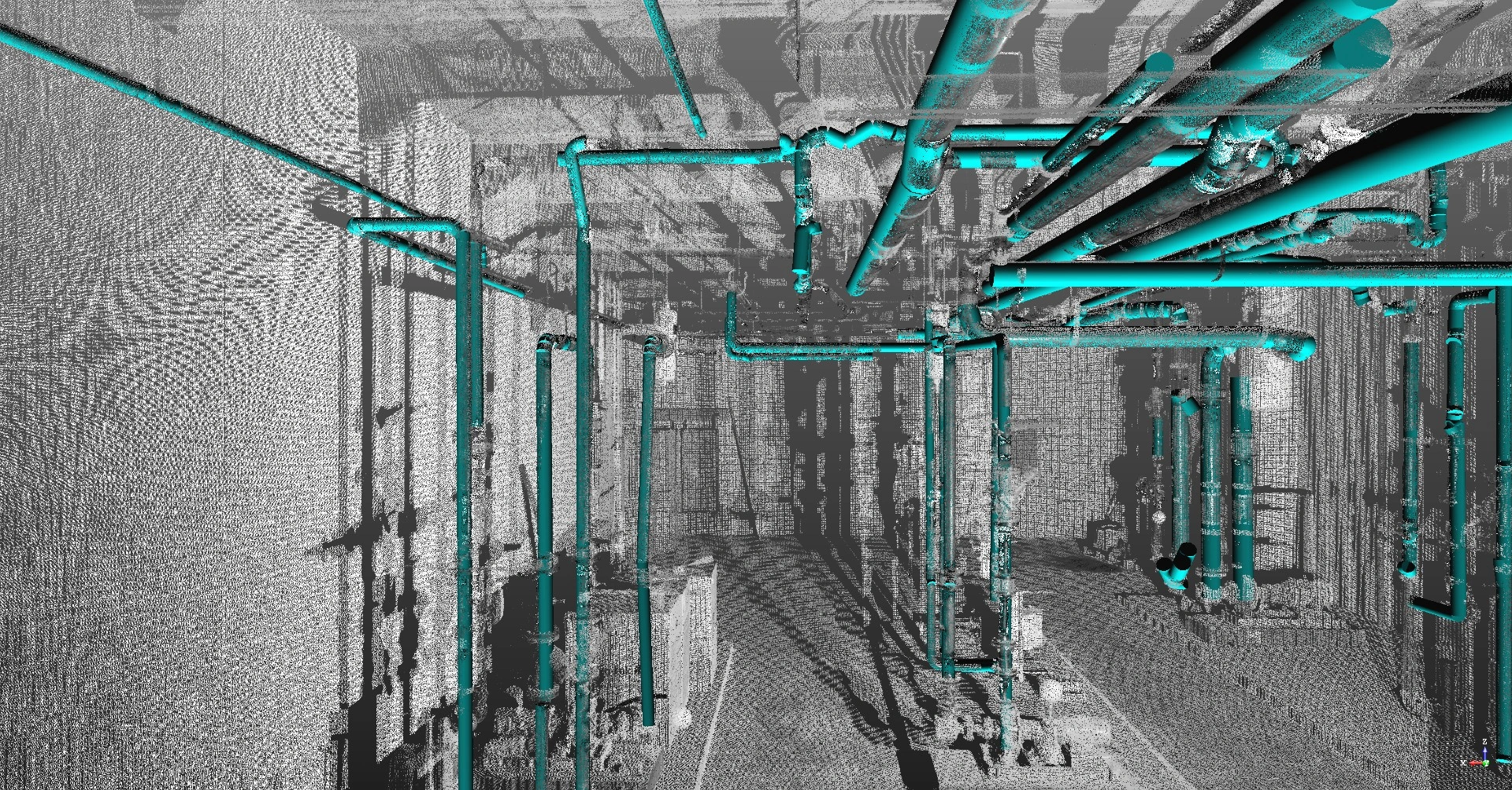
Mechanical room piping model over laser scan data

Mechanical room example: Oregon State University / Yelda Turkan · CC BY-SA 2.0 · Web-optimized; no content edits. External scan-to-BIM example; not a BuildFlow screenshot. Source and license

FAQ

Questions contractors ask before changing systems.

Which CAD and BIM file formats can I view?

The viewer opens IFC building models in 3D and DXF CAD drawings in 2D. DWG and RVT originals can be stored in Project Documents, but must be exported to DXF or IFC for viewing.

Do I need an Autodesk account?

No. BuildFlow-CM uses its own browser-based IFC and DXF viewing module. An Autodesk account is not required to view these supported files.

Can I hide walls or other elements?

You can select and hide individual IFC elements, isolate a selection and restore all elements. A horizontal section cut also lets you look inside the model. Automatic grouping by discipline is not part of this release.

Do I need to upload a document again to open it?

No. Supported files already uploaded to the project’s Documents area appear in the CAD & BIM workspace. Opening them does not create another file.

Does the viewer calculate estimates or takeoff quantities?

No. This release focuses on viewing. It does not automatically connect model quantities, pricing or takeoff to estimates.

Get Started with BuildFlow-CM

Create your account and put your construction operation in one connected system.

Create your BuildFlow-CM account, choose the plan that fits your company, and start connecting estimating, projects, field activity, costs, billing, documents, and workforce workflows.